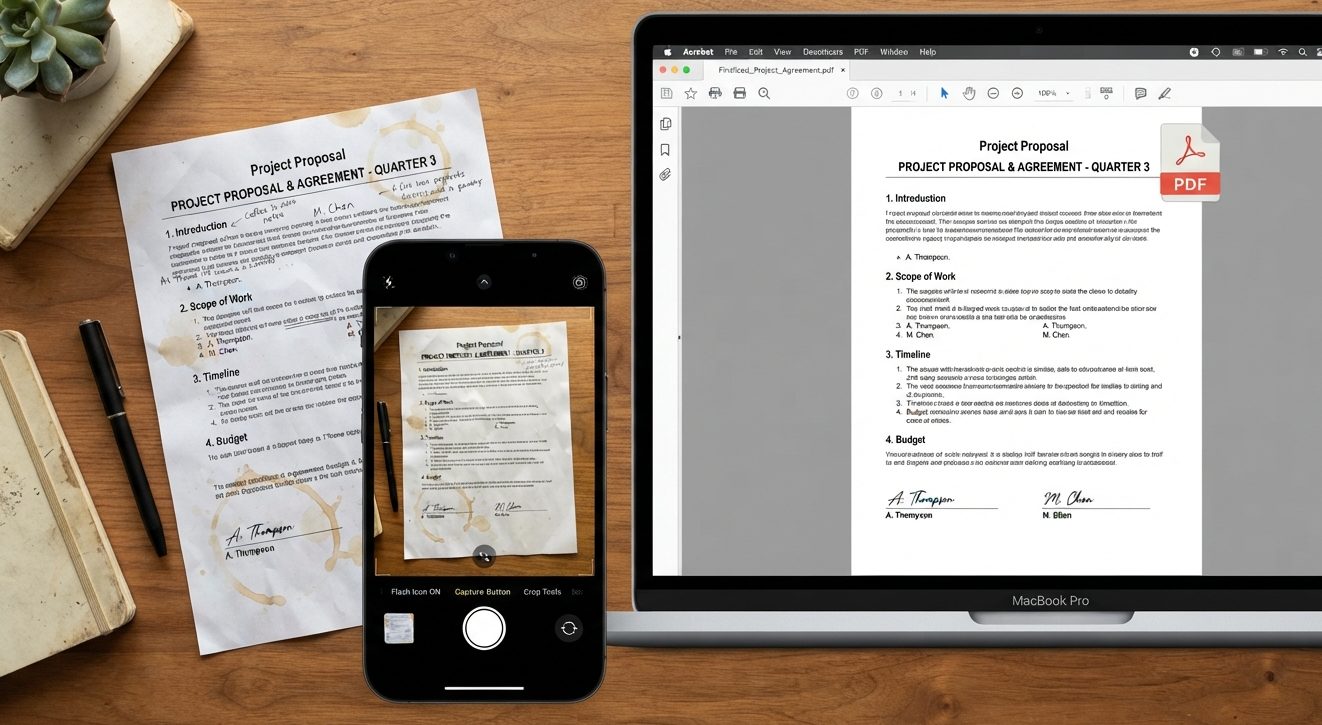
Somewhere between needing to submit paperwork and not owning a scanner, most people end up doing the same thing: photographing documents with a phone and hoping it looks presentable once it's sent off. It usually can, with a few adjustments made before you ever open a conversion tool. Here's what actually makes the difference between a document that looks scanned and one that looks like a photo of a photo.
Get the photo right before you worry about the PDF
Lighting causes more bad scans than anything else. Flash on glossy or laminated paper creates a bright hotspot that can wash out the text right in the middle of the page, exactly where you need it most. Natural, indirect light, near a window but not in direct sun, is almost always better than a phone's built-in flash.
Angle matters just as much. Shoot as close to straight-on, directly above the document, as you can manage. A photo taken at even a slight angle introduces keystoning, that trapezoid distortion where one edge of the page looks wider than the other, and text near the narrow edge gets harder to read. It's also difficult to correct convincingly after the fact, so it's worth getting right at the moment you take the photo rather than trying to fix it later.
Background helps too. Put the document on a dark, plain, matte surface, a table or a notebook works fine, so the page edges stay clearly visible. That makes cropping faster and more accurate, whether you crop by hand or let an app do it automatically.
Worth thirty seconds before you even open the camera: flatten the page. A document that's been folded or rolled up in a bag casts small shadows along the crease that read as dark smudges once it's flattened into an image, and they're much harder to remove afterward than they are to avoid by pressing the page flat under a book for a minute first. If there's a staple or paperclip in the corner, pull it if the document allows, since the shadow it casts tends to land right where a signature or date usually goes.
Crop tight, then convert
Crop out the background before you convert, not after. Once a set of photos is combined into a single PDF, each page inherits whatever framing you gave it. Fixing a crop at that point means working inside a PDF editor instead of your phone's photo app, which is more steps for a worse result. Get the crop right at the source and the conversion step becomes trivial.
Why one PDF beats five separate photos for anything official
A handful of individual image files is easy to send out of order, easy to lose one of, and easy to accidentally leave out of an email attachment. A single PDF fixes the sequence permanently: every page stays in the order you set, it opens the same way on every device without anyone cycling through a photo viewer, and it's what most application systems explicitly ask for in the first place.
This isn't a small distinction. Expense reports, rental applications, visa and passport packets, insurance claims, most job applications: they tend to specify "attach a PDF," not "attach photos," because whoever's reviewing it is dealing with dozens or hundreds of these, and a single, ordered file is the only version of that process that scales.
Combining multiple photos in the right order
Phone camera rolls name files by timestamp automatically, so if you photograph pages in order, page one, then page two, then page three, they'll usually sort correctly without you doing anything. The situation that catches people out is retaking a shot: if page three comes out blurry and you reshoot it, that new photo lands at the end of your camera roll by timestamp, not back in position three. Double check the order right before you upload, especially on anything longer than three or four pages.
Mixed page orientation isn't a problem either. If one document in the stack happens to be a landscape-oriented certificate sitting among a pile of portrait letters, there's no need to rotate everything to match. Each page in a PDF holds its own orientation independently.
A few things worth checking before you send it
- Count the pages. It's easy to miss one, or accidentally include a duplicate, when you're selecting a batch of photos quickly.
- Zoom into the actual PDF, not just the original photos, to confirm the text is legible at the size someone will actually view or print it.
- Check the file size. Photos from a modern phone camera add up fast once several are combined into one PDF, and some email systems and upload forms have limits. If the merged file is large, run it through a compressor afterward rather than downscaling the original photos.
- Name the file something the person receiving it will actually recognize. "IMG_4821.pdf" tells a reviewer nothing; "lastname-lease-application.pdf" tells them exactly what they're opening before they even click it.
A phone camera is a perfectly capable substitute for a scanner for almost anything you'd actually need to submit. The output depends more on how you take the photo than on the conversion step itself.